
Best Monitors for PS5 in 2026
Compare PS5 monitor options by supported resolution, refresh modes and HDMI features, without paying for PC capabilities the console cannot use.
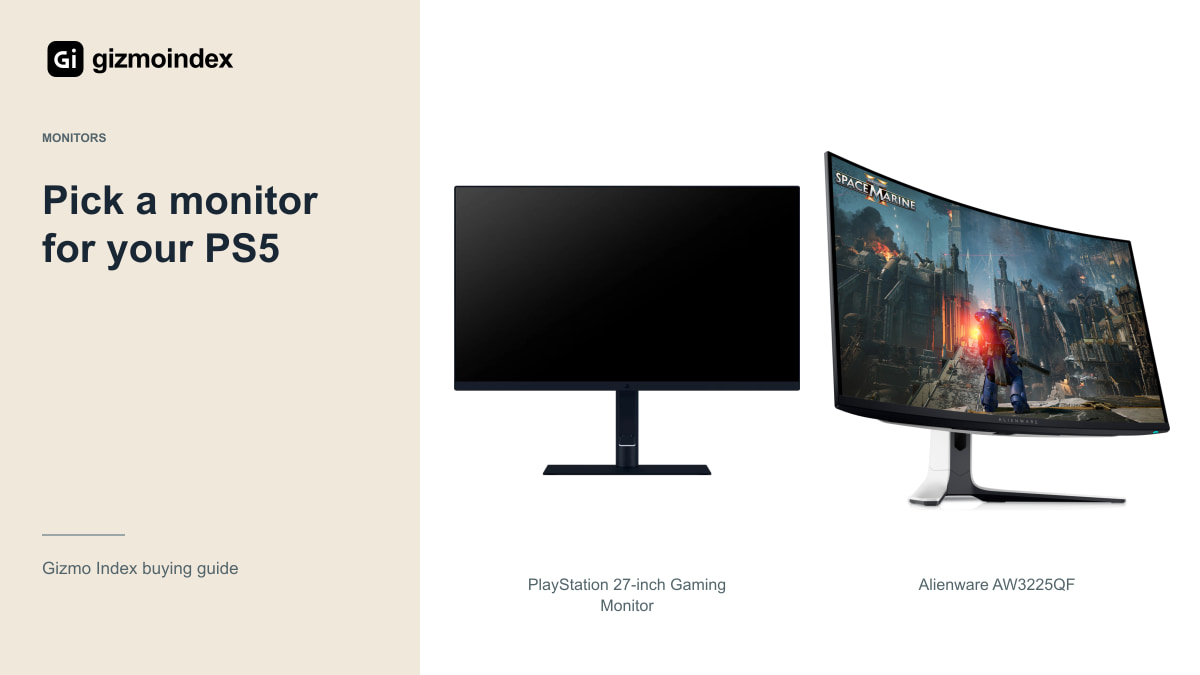
Buying a monitor for PS5? I wouldn’t start with the highest PC refresh-rate number. The PS5’s supported modes, the games you play and the size of the desk matter more. A 240Hz or 600Hz label doesn’t mean the console will run a game at that rate.
I’d compare Sony’s PlayStation 27-inch monitor for a QHD desk setup and Alienware’s AW3225QF for 4K OLED. The Odyssey G6 G60H is more interesting when a fast gaming PC shares the screen. Here’s what I’d pay attention to before choosing between resolution, contrast and speed.
PlayStation 27-inch monitor
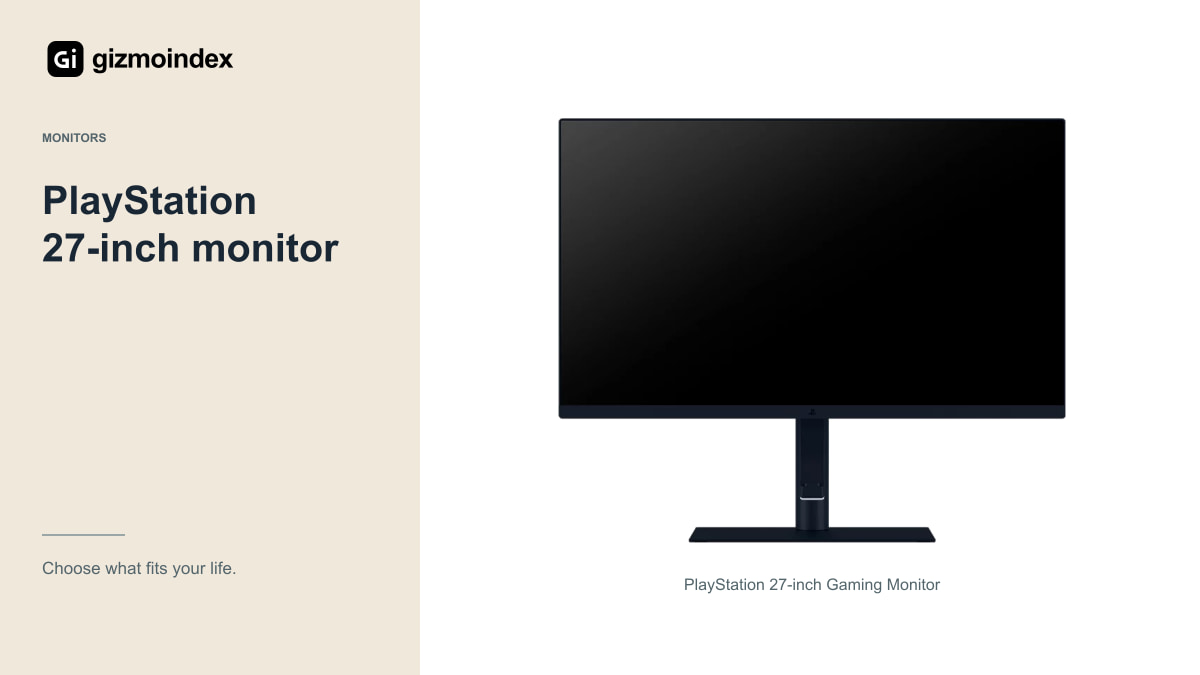
Sony’s 27-inch Gaming Monitor with DualSense Charging Hook uses a 2560 × 1440 IPS panel. Sony specifies up to 120Hz for compatible PS5 games and up to 240Hz for compatible computers. Those are different limits, so the 240Hz headline should not be read as a PS5 capability.
The conventional 16:9 shape is a natural fit for console output. Its connection list includes two HDMI inputs, DisplayPort, USB connections, speakers and a headphone output. The charging hook is a useful convenience if you like keeping a controller on the desk, but the controller itself is sold separately.
I’d consider this for someone who wants a manageable desk screen and values a clear console-focused setup. Its HDR support should still be judged in context: the listed IPS contrast and 350-nit brightness don’t make it equivalent to an OLED or a high-end local-dimming display.
For slower story-driven games, I’d be drawn to picture quality and the way the screen fits the room. For competitive games with a supported high-frame-rate mode, motion becomes a bigger priority. Both are sensible preferences. The wrong move is letting a specification from one type of gaming decide a completely different purchase.
Alienware AW3225QF
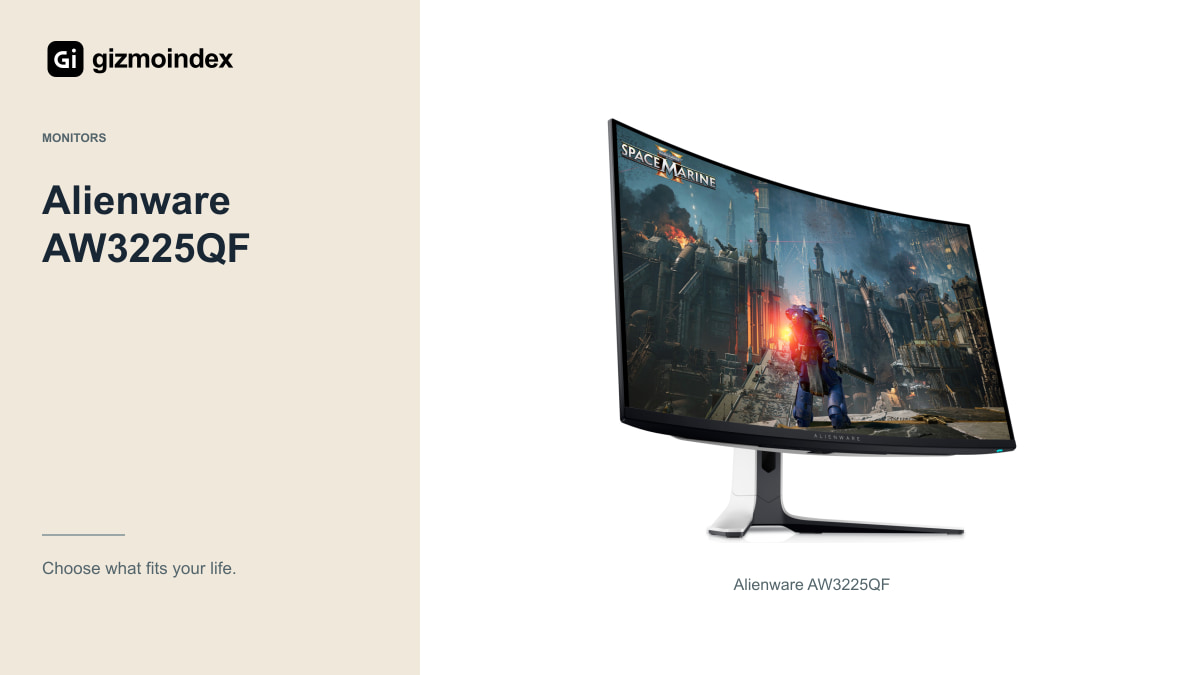
The AW3225QF is a 32-inch-class curved 4K QD-OLED monitor. Its PC refresh-rate ceiling reaches 240Hz, but the PS5 doesn’t use that entire range. The reasons to consider it for a console are the conventional format, 4K detail and OLED picture characteristics.
Check supported HDMI modes, VRR and HDR with the exact console and firmware. A product family label or port-version number isn’t a substitute for the monitor’s supported-mode documentation. Also decide whether the curve suits the distance and position from which you play.
OLED ownership deserves thought if the same screen will show a static work interface all day. Follow panel-care guidance and read the warranty terms in your market. The monitor can be attractive for mixed PC and console use, but the premium should pay for benefits you genuinely value.
Odyssey G6 G60H
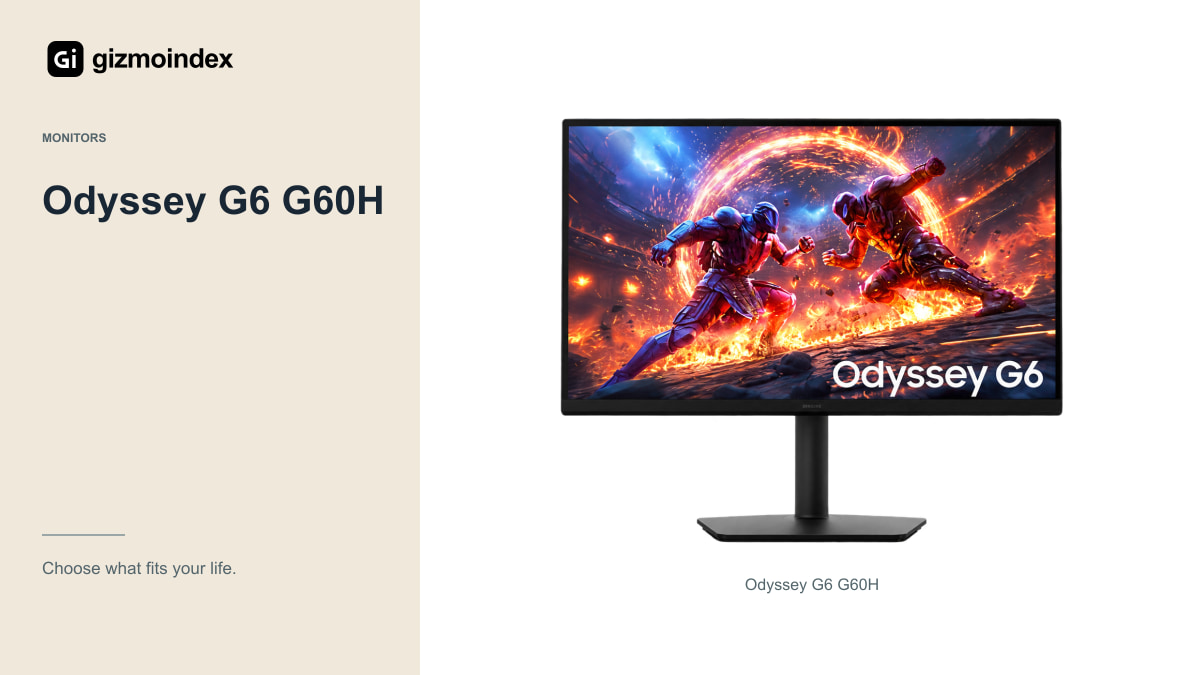
Samsung’s G60H is a 27-inch Fast IPS monitor with announced modes reaching 600Hz at QHD and 1,100Hz at HD. Those are PC-oriented capabilities. They don’t turn a PS5 game into a 600Hz or 1,100Hz experience.
If a powerful competitive gaming PC is the main device and the PS5 is occasional, the G6 may belong on a shortlist. Verify current local availability and final console-mode support for the exact unit before paying. Samsung announced a second-half-2026 global availability window, but that doesn’t confirm stock in every market.
If PS5 is your main platform, I wouldn’t pay a large premium just for the G6’s maximum refresh rate. A suitable QHD or 4K monitor with dependable console modes can be the better-value purchase. The panel is IPS, too, so don’t confuse it with Samsung’s OLED G6 models from other generations.
QHD vs 4K
A QHD monitor can make sense at a desk, particularly when price, screen size and high-refresh game modes matter more than native 4K output. A 4K monitor can provide more detail and may also suit film viewing or a computer used for work.
The game itself still determines the rendering and performance modes available. A 4K-capable monitor doesn’t make every title render a native 4K image at 120 frames per second. Check the games you play and decide which mode you prefer.
Sit at the distance you normally use before choosing the size. A larger screen may feel immersive from farther away and overwhelming on a shallow desk. The right combination of size, resolution and position is more important than winning a specification comparison in isolation.
HDR
Monitors can accept an HDR signal while producing very different visible results. Panel contrast, brightness, local dimming where applicable and the way highlights are handled all matter. A generic HDR label should not be your only reason to spend more.
OLED can make dark scenes and bright detail appealing, while a suitable LCD may be a more relaxed choice for long static desktop use. Compare the picture in a room like yours, with reflections and lighting similar to your setup.
Use the console’s HDR adjustment process after connecting the monitor. Then check a familiar supported game. A dramatic store demo may use a different source or settings from the ones available with your PS5, so judge the actual combination you intend to own.
PS5 setup
Use an appropriate cable and the recommended HDMI input. Check the monitor’s settings and the PS5’s video-output information, then enable the game performance mode when required. A capable monitor can still be left running in a lower-refresh configuration.
Test VRR and the games that support the features you bought the monitor for. Do this during the return period rather than waiting weeks to connect the console. If something behaves unexpectedly, consult the exact model’s documentation and firmware guidance.
Also check sound. Some monitors have speakers, some need external audio equipment, and some offer only particular audio outputs. Decide how your headset, speakers or HDMI audio arrangement will work before assuming the screen covers every part of the setup.
My picks
I’d pick the PlayStation 27-inch monitor for a straightforward QHD setup, provided its final local price makes sense. The Alienware is the one I’d compare for 4K OLED picture quality and a larger screen. Those are clear reasons to spend differently.
The G6’s very high PC refresh modes would only influence me if a PC also used the desk. I wouldn’t buy it expecting the PS5 to benefit from every number printed beside it. Match the screen to the console modes and games you’ll actually use.
After setting it up, check the PS5’s video settings and the game’s own options. A compatible monitor still needs the right mode selected. My advice is to buy the picture and size you want, with the connections you need, rather than paying for unused PC speed.