
Best Tablets for Drawing in 2026
Compare drawing tablets in 2026 by apps, pen capabilities, canvas size and the full setup cost, including iPad and Galaxy Tab options.
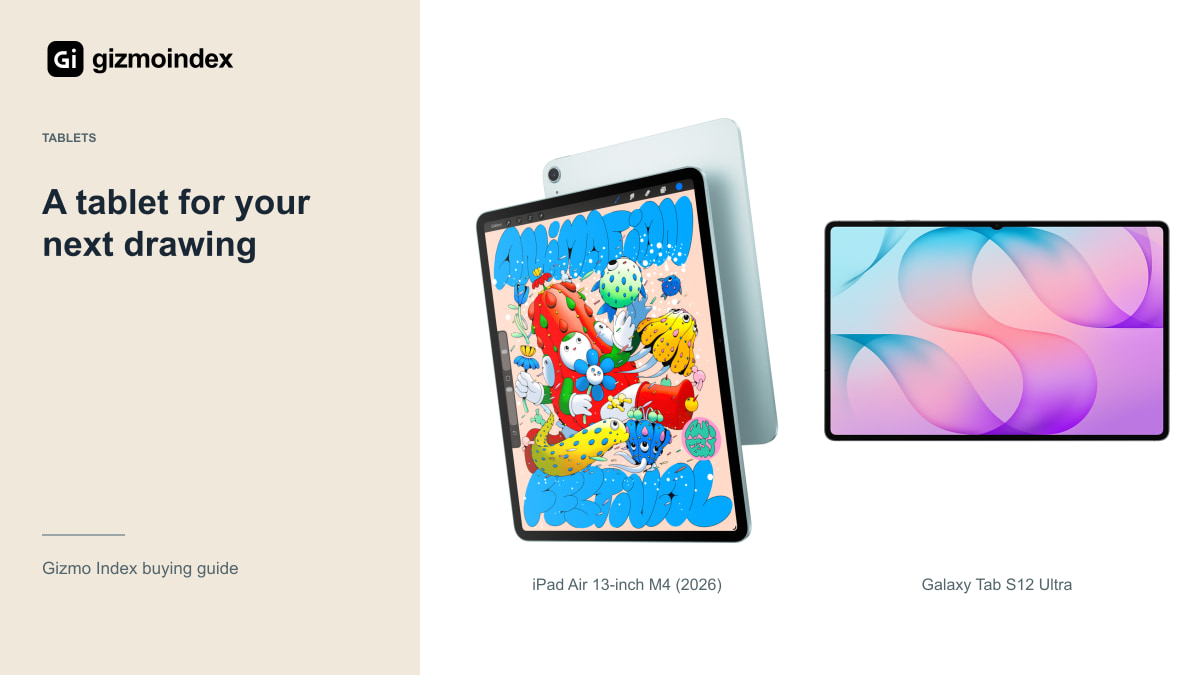
Looking for a tablet for drawing? I’d start with the app and pen, then choose how much screen I wanted. A large display is lovely, but it won’t make up for missing brushes, awkward file handling or a pen setup you don’t enjoy using.
The iPad Air is my first Apple option to compare, with the iPad Pro worth the extra money for specific needs. On Samsung, the Tab S12 Plus and Ultra give you an S Pen in the box and two very different screen sizes. Here’s how I’d choose without spending on the largest tablet automatically.
iPad Air
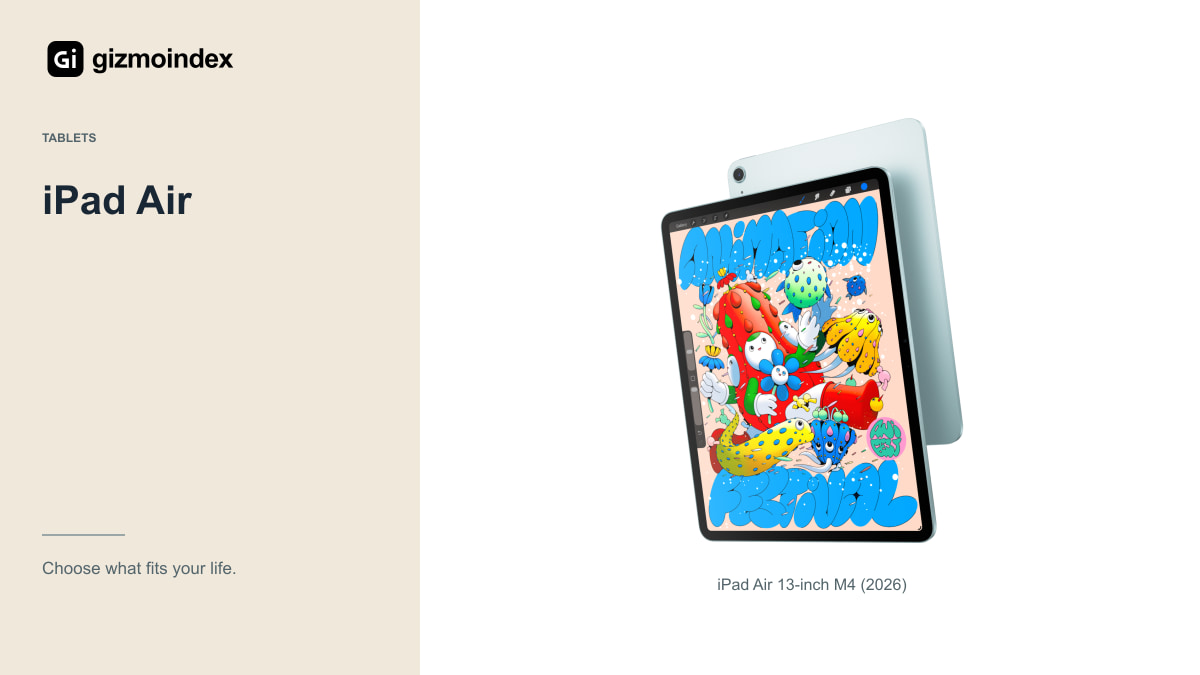
The 2026 Air uses M4 and supports compatible Apple Pencil options. I’d consider it for someone who wants an Apple drawing setup without automatically paying for the Pro. The 11 and 13 sizes let you choose between carrying convenience and a larger canvas.
The Pencil choice matters. Apple Pencil Pro and the USB-C Apple Pencil don’t provide identical drawing features, including pressure sensitivity. Check the exact accessory and app requirements before buying. A cheaper pen can become the wrong saving when drawing is the main job.
The Air’s Liquid Retina IPS screen should not be confused with the Pro’s OLED and ProMotion system. That difference is worth trying in person if display behaviour matters to you. It doesn’t mean every artist needs the Pro or that the Air can’t support useful creative work.
If you usually draw at a desk, a larger screen can give your hand and the controls more room. If you sketch during travel, a tablet that’s easy to pull out may get used more often. I like choosing around that habit. The best canvas is the one that makes you want to start another piece.
iPad Pro
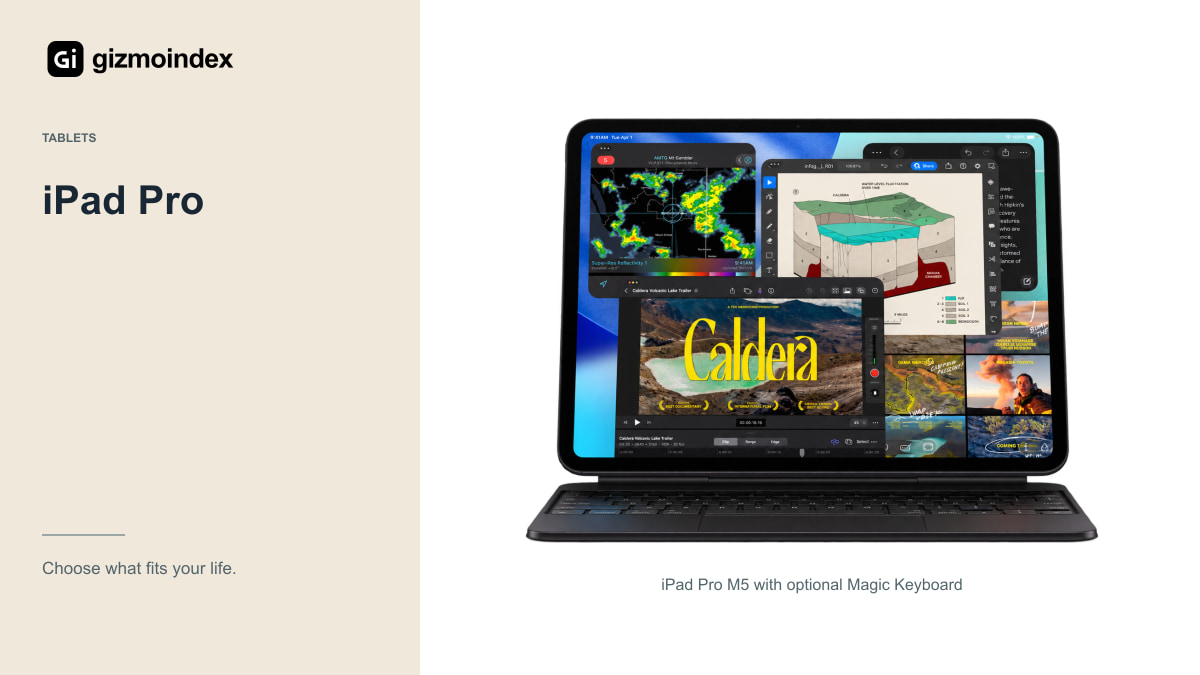
Apple’s current M5 iPad Pro uses a tandem OLED display with ProMotion. It’s worth comparing if that display and the Pro’s other features address a real need. The supporting image shows it with an optional Magic Keyboard, which should be budgeted separately if required.
I’d ask what the Pro enables that the Air doesn’t in your actual application. A more expensive tablet can be worthwhile for a demanding project, but it isn’t a shortcut to better drawing technique. Check layer limits, file sizes and the app’s current features rather than relying only on a processor name.
Include Pencil, storage, stand and any keyboard in the total. Spending everything on the tablet while postponing a necessary drawing accessory is an awkward way to build a working setup. The right complete system matters more than owning the highest product tier.
Galaxy Tab S12 Ultra
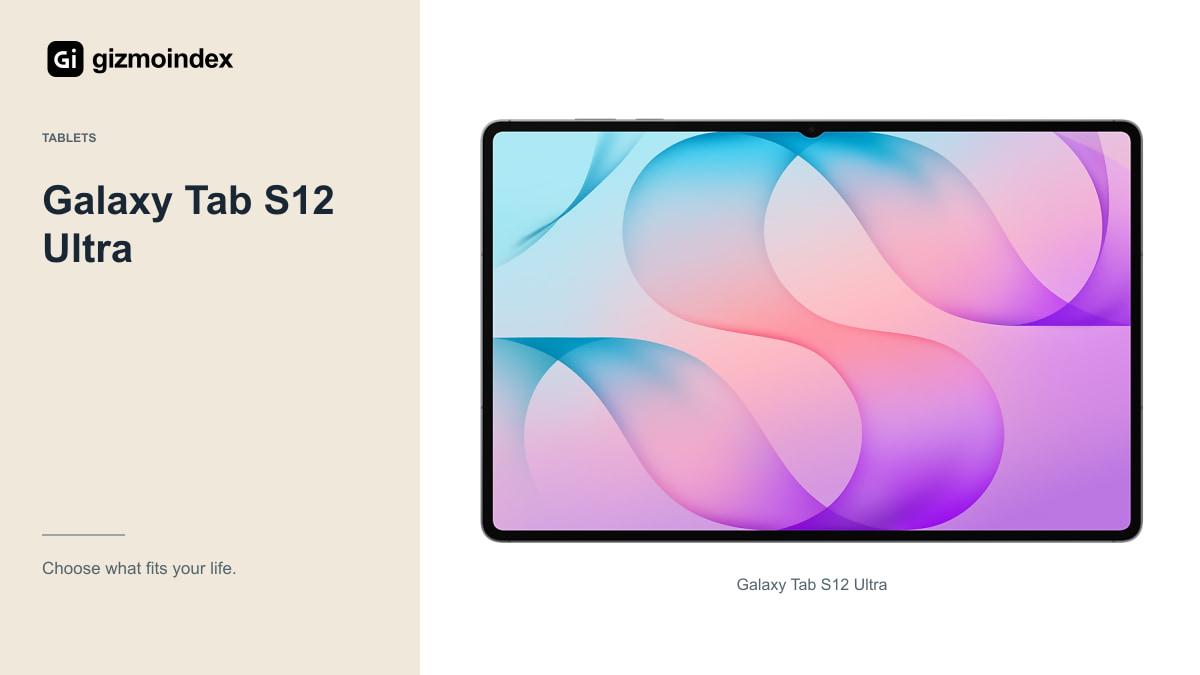
Samsung’s Tab S12 Ultra offers a 14.6-inch AMOLED display and an included S Pen. Its size is a main attraction for a desk-based drawing area. It’s also something to test carefully if you plan to hold the tablet for long sessions or carry it every day.
Check the Android versions of your drawing apps and the way they handle your files. An application with a familiar name may not have exactly the same tools or shortcuts on every platform. Consider the features you depend on before changing ecosystems for a larger screen.
The included S Pen can help the total price, but you may still want a stand, case or keyboard. Confirm what the specific package includes and how the pen behaves in your chosen software. A large display is useful when the whole drawing arrangement is comfortable.
Galaxy Tab S12 Plus
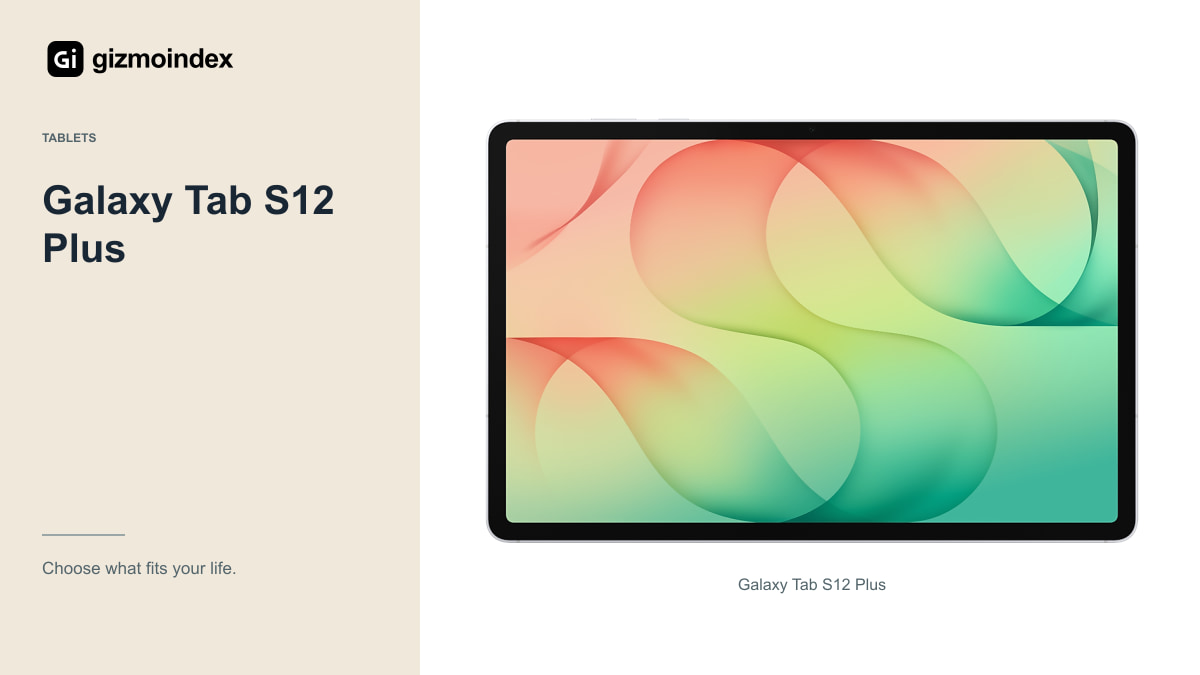
The Plus uses a 12.6-inch display, giving it a different balance between workspace and portability. I’d compare it directly with the Ultra rather than assuming every artist wants the largest available panel. A smaller device that you actually bring out can be more productive.
Try broad strokes, detailed work and access to the app’s tool panels. Think about whether you draw at a table, on a sofa or while travelling. The right screen size depends on those positions as well as the type of artwork, not only how impressive the product photograph looks.
If the Plus saves enough to improve your accessories or storage, that saving may be useful. If your projects need the largest canvas and you work mostly at a desk, the Ultra could justify its extra area. Neither is the automatic choice for every Samsung user.
Drawing apps
Make a short list of the tools you need: brushes, vector support, animation, colour management, fonts or collaboration. Check their current availability and limitations on the platform. A tablet can’t run a missing feature simply because its hardware is fast enough.
Test how you move a project to your computer or another artist. Export formats, layers and linked assets can affect a setup. Open the exported file in the destination application rather than assuming a successful export means everything remains editable in the way you expect.
If you rely on a discontinued app, check access and export options before making it the centre of a new setup. A drawing tablet should give you a practical way to keep and move your work. File ownership and backups deserve as much thought as the first brush stroke.
Pen and comfort
Try the pen grip, pressure response and palm rejection in the actual app. Check the edges of the canvas and the shortcuts you use repeatedly. A quick signature on a shop screen isn’t enough to establish comfort for an afternoon of illustration.
Consider the screen surface and any protector carefully. A textured protector may change the feel, appearance or pen-tip wear, so consider the tradeoff rather than assuming it’s a mandatory upgrade. Your preference and the manufacturer’s compatibility guidance should lead the decision.
A stable stand and good working posture can matter over longer sessions. Think about where your keyboard, references and charging cable will go. The complete physical arrangement should support the way you draw without requiring an awkward position just to use a larger display.
My picks
I’d choose an iPad Air when it ran the drawing apps I wanted and left room in the budget for the right Pencil. I’d spend on the Pro for a specific display or workload benefit, rather than treating it as a requirement for making good work.
On Samsung, I’d choose the S12 Ultra for a large canvas at a desk and the Plus when I wanted something easier to carry. The included S Pen makes the starting package appealing, but the Android app still needs to handle your files and tools properly.
My recommendation is to try drawing a normal piece before deciding. Rest your hand, zoom the page and work near the edges. Pick the setup that feels natural, then buy the storage and cover it needs. A comfortable drawing tablet should help you keep working, rather than make you admire its specifications between sessions.